 BuzzKit
Sometimes you only need part of a PDF: one chapter of a long report, a single invoice from a bundle, the signed page of a contract. Knowing how to split a PDF lets you share exactly what matters and keep the rest private.
This guide shows how to split a PDF for free with the BuzzKit Split PDF tool, how page ranges work, and what to do with the pieces afterwards.
How to split a PDF into pages or ranges
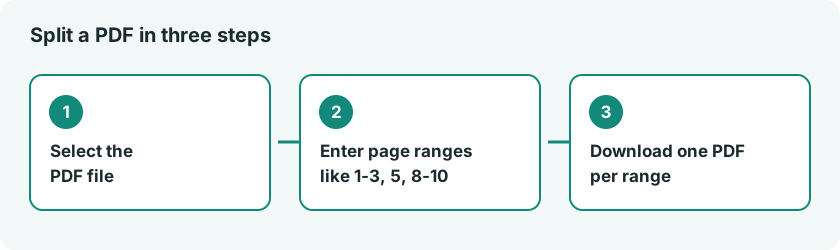
- Open the Split PDF tool and select your PDF.
- Enter the pages you want, for example 1-3, 5, 8-10.
- Download the result. Each comma-separated range becomes its own PDF.
How page ranges work
Page 1 is the first page of the document, and ranges include both ends. A few examples:
- 5 extracts only page 5.
- 3-5 pulls pages 3, 4 and 5 into one file.
- 1-3, 5, 8-10 creates three separate PDFs: pages 1 to 3, page 5, and pages 8 to 10.
Why the pages look exactly the same
The tool uses pdf-lib to copy the pages you choose into new documents. Nothing is re-rendered, so fonts, vector graphics and selectable text stay exactly as they were in the original, and the new files contain only the pages you asked for.
What to do with the pieces
- Remove a page. Split out the ranges you want to keep, then join them with Merge PDF.
- Shrink a large piece. Run it through Compress PDF. Our guide on compressing a PDF without losing quality explains when that is a good idea.
- Turn pages into pictures. Use PDF to Image on the split file, so only the pages you need are converted.
Keep sensitive documents private
Contracts, IDs and tax forms should not be handed to a random website. Many free tools upload your file to a server you cannot see. Read our article on the risks of free file converters before you upload anything private. The Split PDF tool runs in your browser, so the document stays on your device.
The open-source pdf-lib library does the copying, and its documentation describes how pages are moved between documents.
Frequently asked questions
Can I split a PDF into more than one file?
Yes. Each comma-separated range becomes its own downloaded PDF.
How do I extract a single page?
Enter just that page number, for example 5.
Can I join the pieces back together?
Yes. Use the Merge PDF tool to combine separate PDFs into one document.
Open the Split PDF tool, enter your page ranges and share only the pages that matter.