 BuzzKit
A PDF that refuses to attach to an email is one of the most common little frustrations at work and at school. Scanned contracts, assignment packs and photo-heavy reports can easily run past the limit, and sending a document in pieces is slow and messy.
The fix is to compress the PDF. This guide explains why PDFs get large, how the free BuzzKit PDF Compressor actually shrinks them, when it is the right choice and when it is not, and what to do if the file is still too big.
Why some PDFs are huge
A PDF exported from a word processor is mostly text and is usually small. The size problem almost always comes from images:
- Scans: every page is a full photograph of paper, often at a very high resolution.
- Embedded photos: pictures pasted into a document are kept at their original size.
- Exported slides and designs: high resolution graphics add up quickly.
How the PDF Compressor works
The tool renders each page of your PDF and saves it again as a lower-resolution JPEG image, then rebuilds a new PDF from those images. That is why it can shrink scans and photo-heavy files dramatically. It also has a side effect you should know about before you use it: because every page becomes a picture, the compressed file no longer contains selectable or searchable text.
That makes it a good fit for some documents and a poor fit for others:
- Good fit: scanned documents, photo-heavy reports, anything that is already mostly images.
- Poor fit: text-heavy documents you need to search, copy from or keep accessible. These are already small and see a much smaller reduction.
How to compress a PDF for free
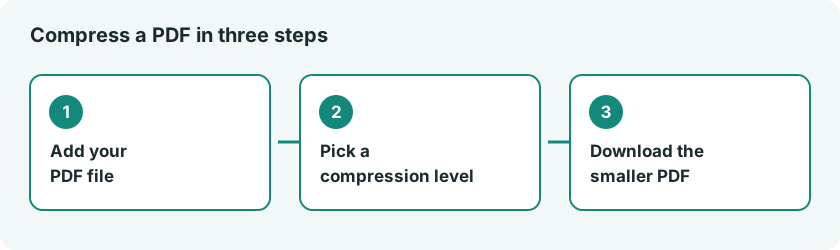
- Open the PDF Compressor in your browser.
- Add the PDF you want to shrink.
- Choose a compression level: Light for best quality, Recommended for a balanced result, or Maximum for the smallest file.
- Compress it and download the new PDF.
- Open the new file and scroll through every page to check it.
Start with Recommended. That last step matters, because a strong setting can make small print or fine lines look blurry, and it is better to find that out before you send the file. Always keep the original, since the compression cannot be undone.
Know the limit you are aiming for
Gmail caps attachments at 25 MB. Many application portals, school systems and government forms set much lower caps, sometimes only a few megabytes. Check the exact number first so you do not compress more than you need to.
When compression is not enough
If the file is still too big, or you need to keep the text intact, try one of these.
Split the document
The Split PDF tool copies the pages you choose into new files without re-rendering them, so the original formatting and text are preserved. Two files of 12 MB each are easier to send than one of 24 MB that keeps failing.
Remove pages you do not need
Cover sheets, blank pages and duplicates add weight. Extracting only the pages you need with Split PDF gets rid of them.
Shrink the images before you build the PDF
If you are making the PDF yourself from photos, reduce each picture with the Image Compressor first, then combine them with the Image to PDF converter. The result is much smaller from the start.
Export again from the source
If you still have the original Word, Slides or design file, exporting a fresh PDF with a smaller image quality setting keeps the text selectable and is often the cleanest fix.
The opposite problem: joining files
Sometimes you need to send one tidy file instead of five. The Merge PDF tool combines documents in the order you select them, and it does not re-render the pages. Merge first, then compress the final file if it is a scan-heavy document, so you only check the quality once.
Keep sensitive documents safe
Contracts, IDs, tax forms and medical papers should not be handed to a random website. Many free tools send your file to a remote server and you cannot see what happens to it. Our article on the risks of free file converters explains what to look for before you upload anything private.
The PDF tools on BuzzKit are built on open-source libraries: pdf.js renders each page and pdf-lib assembles the new file.
Frequently asked questions
Can I still select text after compressing a PDF?
Not with this tool. It turns each page into an image, so the text becomes part of the picture. If you need searchable text, use Split PDF, export a smaller PDF from the source file, or run OCR in other software.
How much smaller can a PDF get?
It depends on what is inside. Scanned and photo-heavy files can shrink a lot, while text-only files are already small and will change much less.
Can I reverse the compression?
No. Once the image quality is reduced, the original detail is gone, so always keep a copy of the original file.
Shrinking a PDF should take a minute, not an afternoon. Start with the Recommended level in the PDF Compressor, check the pages, and only go stronger if you have to.