 BuzzKit
A cover letter and a resume, a contract with a separate signature page, scanned pages that came out of the scanner as five different files: documents rarely arrive as one tidy PDF. If you need to merge PDF files before you send or upload them, you do not need desktop software.
This guide shows how to merge PDF files for free with the BuzzKit Merge PDF tool, why the formatting stays exactly as it was, and the mistakes to avoid.
How to merge PDF files in your browser
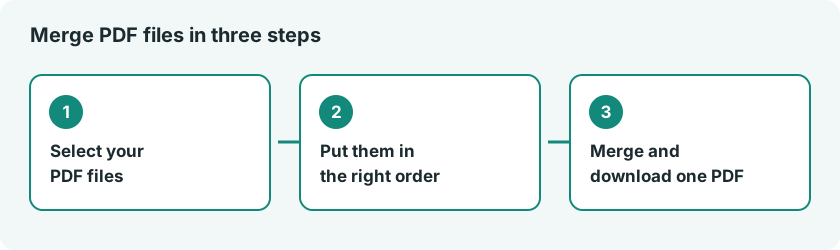
- Open the Merge PDF tool and select the PDF files you want to combine.
- Add them in the order you want the pages to appear.
- Click merge.
- Download the combined PDF.
Why the formatting stays intact
The tool uses pdf-lib, a JavaScript library for reading and writing PDFs, and copies the actual page objects into a new document. Fonts, vector graphics and selectable text come along with them. Nothing is converted to an image and nothing is re-rendered, so the pages look exactly as they did in the source files. The merged file is also roughly the sum of the sizes of the originals.
What merging cannot do
- It cannot add text to scans. A scanned page is an image, and merging keeps it exactly that way. Making it searchable needs optical character recognition, which this tool does not perform.
- It cannot open locked files. A password-protected PDF has to be unlocked first.
- It follows your order. Pages appear in the sequence you add the files, so check the order before you merge.
- Very large jobs take longer. There is no hard limit on pages or files, but hundreds of pages use more of your browser memory because everything runs on your device.
Common reasons to merge PDFs
- Combining a cover letter and resume into one upload for a job application.
- Joining scanned pages that your scanner saved separately.
- Assembling a contract from the main document, a signature page and exhibits.
- Putting several invoices or reports into one email attachment.
Merge first, then compress
If the combined file is too big to send, run it through Compress PDF afterwards, so you only check the quality once. Our guide on compressing a PDF without losing quality explains the trade-offs. If you need to drop a page before merging, use Split PDF to keep only the pages you want, then merge the pieces. Photos can be turned into a PDF first with our images to PDF guide.
The open-source pdf-lib documentation explains how pages are copied between documents.
Frequently asked questions
Will fonts or text selection change after merging?
No. Pages are copied directly, not re-rendered, so fonts, vector graphics and selectable text carry over exactly.
Can I merge password-protected PDFs?
Not directly. Unlock the file in your PDF viewer first, then merge it.
Does the order I select files in matter?
Yes. Pages appear in the merged document in the order you added the files.
Open the Merge PDF tool, add your files in order and have one clean document in under a minute.