 BuzzKit
You photographed a signed form, a receipt or a stack of notes with your phone, and now someone wants it as a single PDF. Sending a dozen loose pictures looks messy, and many portals only accept PDF files anyway. The good news is that you can combine photos into one tidy PDF in a couple of minutes without installing anything.
This guide shows how to convert images to PDF, how to get the pages looking clean, and how to keep the final file small. You can use the free BuzzKit Image to PDF converter as you go.
When you need to convert images to PDF
- Job and school applications: many portals only accept PDF uploads.
- Expense claims: receipts photographed one by one become a single file.
- Signed documents: a photo of a signed page is easier to send as a PDF.
- Notes and handouts: a set of pictures of a whiteboard or book pages is simpler to share as one document.
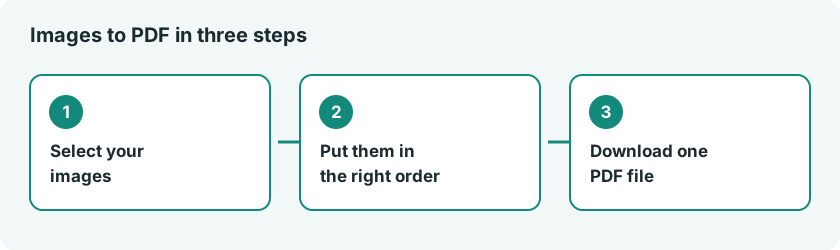
How to convert images to PDF
- Rotate or crop any pictures that need it first (see below).
- Open the Image to PDF converter and select your JPG or PNG files, picking them in the order you want the pages to appear.
- Click Create PDF.
- Download the PDF and open it to look through every page.
The tool adds pages in the order you select the files, one image per page, and each page takes the size of its own image. There is no drag-and-drop reordering, so if the order is wrong, run it again and select the files in the right sequence. Naming your photos 01, 02, 03 makes this easier to manage. You can mix JPG and PNG files in the same document.
Prepare your photos for a clean result
A few quick fixes before you convert make a big difference to how professional the PDF looks.
Crop out the clutter
Photos of paper often include a table, a thumb or a shadow. Trim them with the Image Cropper so the document fills the page.
Straighten and orient
Check that each page is upright. The Image Rotator and Flip tool turns pictures in 90-degree steps and can mirror them if needed.
Improve readability
Take photos in good light, straight from above, and keep text sharp. If a page is a black-and-white document, the Grayscale converter can give a cleaner and often smaller result.
Convert other formats first
The converter accepts JPG and PNG. If your pictures are in another format, such as WebP, turn them into JPG or PNG with the Image Converter before you build the PDF.
Keep the PDF small enough to send
Modern phone photos are large, and a PDF made from many of them can easily pass an email limit. Gmail, for example, caps attachments at 25 MB, and many online forms allow far less. You have two options:
- Reduce each photo before building the PDF, using the Image Compressor (it outputs JPEG) or the Image Resizer.
- Shrink the finished PDF afterward with the PDF Compressor. It rebuilds each page as an image, which suits a PDF made of photos.
After either step, scroll through the document to check that the text is still readable.
Combine, split and tidy
Already have several PDFs and want a single file? The Merge PDF tool joins them in the order you select. If you built a long PDF and only need some of its pages, the Split PDF tool pulls them out. If you want the pages back as pictures, use the PDF to Image converter.
Handle personal documents carefully
IDs, bank statements and medical papers are some of the most sensitive files you own. Before you upload any of them to a website, find out what the site does with your data. BuzzKit’s tools run in your browser, and our guide to the risks of free file converters explains the red flags to look for on other sites.
BuzzKit builds the PDF with pdf-lib, an open-source JavaScript library, so the whole process stays in your browser.
Frequently asked questions
Can I put several photos on one PDF page?
No. This tool creates one page for each image, which keeps documents readable.
Will converting images to PDF reduce quality?
Not meaningfully. Quality depends mostly on the original photo, so shoot in good light and keep the text sharp.
What order will the pages be in?
The order in which you select the images. Check the finished PDF before you send it.
Turning pictures into a single PDF is mostly about preparation: crop, rotate, choose them in order, then convert. Open the Image to PDF converter, follow the steps above, and your next submission will look far more professional.