 BuzzKit
A video recorded on one device often will not play, edit or upload cleanly somewhere else. A screen recorder saves one format, a website accepts another, and an editor refuses a codec it does not know. If you need to convert MOV to MP4, you can do it in your browser without installing anything or uploading the file.
This guide shows how to convert MOV to MP4 for free with the BuzzKit Video Converter, which format to pick when you are not sure, and why the conversion takes a while.
How to convert MOV to MP4 in your browser
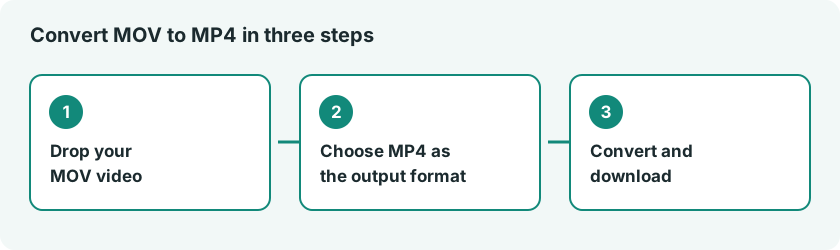
- Open the Video Converter and drop in your MOV file.
- Choose MP4 as the output format.
- Start the conversion and wait for it to finish.
- Download the converted file.
Which format should you choose?
- MP4 is the safest default. It plays in essentially every browser, phone and video platform.
- WebM is built for web playback and often gives smaller files for websites, but some older desktop players handle it poorly.
- AVI is an older container. Choose it only if a specific program or device asks for it.
- MKV is the most flexible, useful for keeping several audio tracks or subtitles, but it has the weakest playback support on phones and in browsers.
What happens during the conversion
The tool runs ffmpeg.wasm, a WebAssembly build of the real ffmpeg project, inside your browser tab. It reads your file and writes it back out in the new container, using the standard codec for that format, such as H.264 video and AAC audio for MP4. This is a genuine re-encode, not a quick repackaging, which is why longer or higher-resolution clips take longer and why an older device will feel it. A re-encode also carries a small quality cost, usually invisible at normal viewing sizes.
Want a smaller file instead?
Changing the format alone rarely shrinks a video much, because the picture data is mostly untouched. If size is the real problem, use the Video Compressor and read our guide on how to compress a video without losing quality. You can also cut the clip down first with the Video Trimmer, or follow our guide on how to trim a video.
Limits to know about
- Files convert one at a time.
- There is no bitrate or codec control on this page. It changes the format only.
- Very large files, such as long 4K recordings, are the most likely to struggle on a low-powered device, because your own CPU and memory do the work.
For a plain-language comparison of video file formats, see the MDN guide to media container formats.
Frequently asked questions
Does converting upload my video?
No. Decoding and re-encoding both happen on your device through WebAssembly.
Why is the conversion slow?
Video re-encoding is heavy work for a processor. Longer clips and higher resolutions take proportionally more time.
Which format should I pick if I am not sure?
MP4. It has the widest compatibility of the four options.
Open the Video Converter, pick MP4 and get a file that plays almost anywhere.