 BuzzKit
You finish recording, hit send, and the email bounces because the file is too big. Videos from modern phones are heavy, and most inboxes and apps cap how large a file you can share. The good news is that a video can often be made much smaller without looking noticeably worse on a phone screen.
This guide explains what makes a video large, how the quality slider in the free BuzzKit Video Compressor works, and what to do when compression alone is not enough.
Why video files get so big
File size comes down to bitrate (how much data is used for every second of video) multiplied by length. A phone recording in 4K at a high frame rate uses a lot of data each second, even when the scene barely changes. Three things drive the size the most:
- Resolution: 4K has four times as many pixels as 1080p.
- Bitrate: a higher bitrate means finer detail and a bigger file.
- Length: twice as long means roughly twice the size.
Know your limit before you compress
Decide on a target size first. Gmail, for example, caps attachments at 25 MB. Messaging apps and social platforms set their own limits and change them over time, so check the current limit in the app before you start. Aim a little under the cap, because the message itself adds some overhead.
How to compress a video in your browser
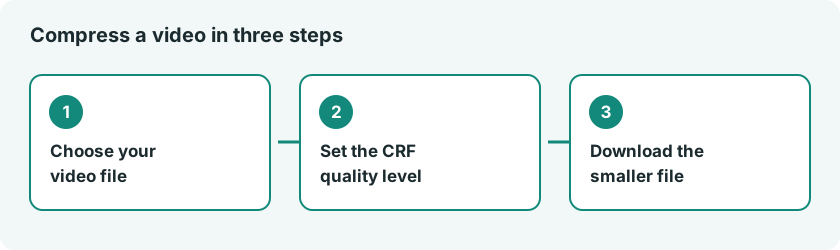
- Open the Video Compressor and choose an MP4, WebM or MOV file.
- Set the compression level. The default is 28. A lower number keeps more detail and makes a bigger file, and a higher number makes a smaller file with more visible compression artifacts.
- Click Compress video and wait. The first time you use a video tool, your browser downloads a small processing engine, which is then cached.
- Preview the result, then download it.
The slider controls quality (it is the H.264 CRF value), not an exact file size. If the result is still too large, raise the number a little and run it again from your original file. As a rough rule of thumb, raising the value by about six roughly halves the bitrate, though the exact result depends on your footage.
What this tool does not do
The Video Compressor re-encodes your video at the quality you choose. It does not shrink the picture dimensions and it cannot aim for an exact size such as 10 MB. If you need to get under a strict limit, combine compression with the steps below.
Other ways to make a video smaller
Trim what you don’t need
Cutting the start and end, or a dull stretch in the middle, shrinks a file more than any quality slider. Use the Video Trimmer first, then compress what is left.
Remove the audio when it isn’t needed
For a screen recording, a silent demo or a looping clip, strip the sound with the Mute Video tool. Audio is small compared with video, but it helps when you are right at the limit.
Turn very short clips into GIFs
For a clip of a few seconds, the Video to GIF converter lets you set the frame rate and width. GIFs get large quickly, so keep them short.
Common mistakes to avoid
- Compressing twice at heavy settings. Each pass throws away more detail, so start again from the original when you can.
- Choosing the wrong format. MP4 with H.264 plays almost everywhere. If you need a different container, use the Video Converter.
- Skipping the preview. Always watch the result before you send it.
For a deeper look at the quality setting used here, the FFmpeg H.264 encoding guide explains how the constant rate factor (CRF) works.
Frequently asked questions
Will compressing a video reduce its quality?
Usually a little, because compression discards some detail. At sensible settings the difference is hard to see on a phone, but it can’t be undone, so keep your original file.
What is the best format for sharing a video?
MP4 is the safest choice because almost every phone, browser and app can play it.
Is it safe to compress videos online?
That depends on the site. Many free converters upload your file to a server you know nothing about. BuzzKit’s tools run in your browser instead, and our guide to the risks of free file converters explains what to check before you hand a private video to any tool.
Compressing a video takes about a minute once you know the main levers: quality, length and sound. Open the Video Compressor, try it on your next clip, and keep the original safe in case you need it later.