 BuzzKit
You save a picture and have to pick a format: JPG, PNG or WebP. Most people choose whatever the app suggests, and most of the time that works. But the wrong choice can mean blurry text, a heavy web page, or a white box where transparency should be.
This guide compares the formats you will meet most often, explains where each one shines, and shows how to switch between them for free with the BuzzKit Image Converter.
JPG (JPEG): the everyday photo format
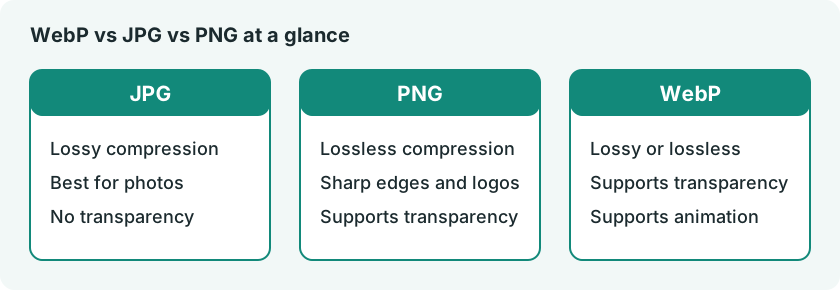
JPG uses lossy compression, which means it throws away detail that is hard to notice in order to make files small. That makes it a great fit for photographs with lots of color and gradients. Its weaknesses are sharp edges and text, which can pick up fuzzy artifacts, and it has no support for transparency.
Best for: photos, social posts, email attachments.
PNG: sharp edges and transparency
PNG is lossless, so nothing is discarded when you save. Logos, screenshots, diagrams and text stay crisp, and PNG can store a transparent background. The cost is size: a photo saved as PNG is usually much larger than the same photo as a JPG.
Best for: logos, screenshots, graphics with text, cutouts with transparent areas.
WebP: one format that covers most jobs
WebP was developed by Google for the web. It can be lossy or lossless, supports transparency and can even hold simple animations. Google’s own testing found lossy WebP files to be roughly 25 to 34 percent smaller than comparable JPEGs, and modern browsers all support it. That is why many websites now serve images as WebP.
Best for: website images, where smaller files help pages load faster.
The main drawback is compatibility outside the browser. Some older software and a few upload forms still reject WebP files, and that is where converting back to JPG or PNG helps.
AVIF: the newer, smaller option
AVIF is a newer format that can reach even smaller sizes at similar quality. Support has grown quickly in browsers, but it can be slower to create and is less widely accepted by editing software. It is worth knowing about, though JPG, PNG and WebP will cover nearly everything you need today. Note that the BuzzKit Image Converter works with JPG, PNG and WebP and does not create AVIF files.
WebP vs JPG vs PNG: quick comparison
- Photo to share with anyone: JPG
- Logo or screenshot: PNG
- Image that needs a transparent background: PNG or WebP
- Image for your own website: WebP
- Upload form that rejects a format: convert to JPG or PNG
How to convert an image
- Open the Image Converter and add your file.
- Choose PNG, JPG or WebP as the output format. For JPG and WebP, a quality slider (92% by default) lets you trade quality for a smaller file.
- Convert and download the new file.
Two habits save a lot of trouble. First, keep your original file, because converting from one lossy format to another loses a little more detail each time. Second, convert as the last step, after resizing and editing.
Do not forget size and dimensions
The format is only half of the story. A huge photo will still make a slow page, even as WebP. Scale it to the size you actually need with the Image Resizer, then reduce the weight with the Image Compressor. If you are making a site icon, the Favicon Generator creates the sizes you need.
Think before you upload private pictures
Photos can reveal where you live and who you are. Before you send an image to any online converter, understand where it goes. Our guide to the risks of free file converters covers what to check first.
For the technical details, see the WebP specification (RFC 9649) and the W3C PNG specification, or the MDN guide to image file types for browser support notes.
Frequently asked questions
Is WebP better than JPG?
For websites, usually yes, because it gives smaller files at similar quality. For sharing with people or old software, JPG is still the safer choice.
Does converting PNG to JPG lose quality?
Yes, a little. JPG is lossy, and transparency is replaced by a solid color. Keep the PNG as your master copy.
Which format is best for a logo?
PNG is the most common choice because it keeps edges sharp and supports transparency. SVG is even better for logos on websites, since it scales to any size.
There is no single best format, only the best one for the job. Pick based on where the image is going, keep your original, and use the Image Converter whenever a site or app wants something different.