 BuzzKit
Whether you sell things online, design a logo or put together a presentation, you will eventually need to cut a subject out of its background. The quickest way to do it depends on the photo. If the picture was taken against a plain, evenly colored backdrop, you can make that background transparent in seconds, for free, right in your browser.
This guide explains how that works, which photos it suits, and how to get a clean result with the BuzzKit Image Background Remover. It also covers what this kind of tool cannot do, so you know when to try something else.
How the tool works
The Image Background Remover is a color-based cutout, not an AI model that recognizes people or objects. It samples the color at the four corners of your image and treats that as the background color. Every pixel that closely matches it becomes transparent, with a softened edge so the cutout does not look jagged. It is the same idea as green screen removal, except it works from whatever color is already behind your subject.
That makes it quick and private, and it works well in these situations:
- Product photos: items shot on a white or solid-colored backdrop.
- Logos and graphics: artwork on a flat background.
- Studio-style portraits: ID-style photos taken in front of a plain wall.
When it will not work well
Because it relies on color, it struggles when the background is busy or textured, when it contains the same color as your subject, or when the scene has strong shadows and gradients. A photo of a person standing in a crowded room, or a subject on a patterned surface, will not give a clean result with this approach. For those, you need a tool that detects the subject itself.
How to remove a background from an image step by step
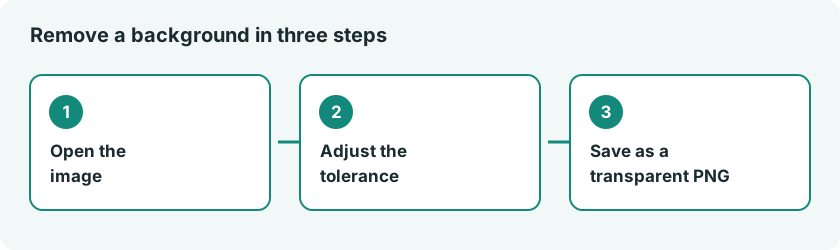
- Open the Image Background Remover and upload your image.
- Leave the tolerance at its default of 32 for a first try, then click Remove background.
- Zoom in on the preview and check the edges.
- Adjust the tolerance and run it again if needed, then download the PNG.
The tolerance setting controls how close a pixel’s color has to be to the background to be removed. If specks of background are left around the subject, raise it. If parts of the subject start to disappear, lower it. Small changes make a big difference, so adjust a little at a time.
Take a better photo to begin with
You will get the cleanest cutout when you control the shot:
- Use a plain wall, a sheet of paper or a fabric backdrop in a single color.
- Choose a background color that is different from the subject. A white product on a white wall will vanish.
- Light the scene evenly so the backdrop has no strong shadows or gradients.
- Keep the photo sharp and avoid heavy compression.
Retaking a photo against a plain backdrop often works better than any fix afterward.
Save in the correct format
The tool gives you a PNG, which keeps transparency. A JPG does not support transparency, so converting the cutout to JPG will fill the empty area with a solid color. Keep the PNG if you plan to place the image on top of another design or a web page. If you need a different format later, the Image Converter can do it, but convert only at the very end.
Polish the result
Resize it for where it will be used
A cutout that is far bigger than you need will slow down a website or fail an upload. Scale it to exact pixel dimensions with the Image Resizer or trim empty space with the Image Cropper.
Keep the file size under control
Transparent PNGs can be heavy. Note that the Image Compressor outputs JPEG, which drops transparency, so use it only on images where you do not need a transparent background.
Privacy tips for personal photos
Pictures of people, children, documents and home interiors deserve care. Before you upload a photo to any tool, check how the site handles your files. BuzzKit’s tools process images inside your browser, and our guide to the risks of free file converters lists the warning signs worth knowing about other sites.
If you want to know why PNG is the right format for cutouts, the MDN guide to image file types compares PNG, JPEG, WebP and GIF, including how each handles transparency.
Frequently asked questions
Is there a free way to remove a background from a photo?
Yes, for plain backgrounds. The BuzzKit Image Background Remover is free, needs no account and works in your browser. For complex scenes you would need a tool that detects subjects.
Why does my cutout have a white box around it?
You most likely saved or converted it as a JPG. Keep it as a PNG to preserve the transparent background.
Why are parts of my subject disappearing?
The tolerance is probably too high, or the subject contains a color close to the background. Lower the tolerance, or retake the photo against a contrasting backdrop.
With a plain backdrop and a PNG export, you can get a clean cutout in under a minute. Try the Image Background Remover on your next product shot or logo.