 BuzzKit
You record a lecture, a voice memo or an interview, and later discover you can barely hear it. Cranking your speakers up to the maximum only makes the background hiss louder too. The better fix is to raise the volume of the file itself, which takes less than a minute if you use the right approach.
This guide explains how to make quiet audio louder, why pushing it too far causes distortion, and how to do it for free with the BuzzKit Volume Booster.
Why recordings come out too quiet
A few common causes explain most quiet files:
- Distance from the microphone: the further away the speaker, the lower the level.
- Low input gain: phones and recorders often set conservative levels to avoid clipping.
- Room noise and echo: big, empty rooms swallow the voice and add hiss.
- Mismatched sources: when you combine clips, one can be much quieter than the other.
Knowing the cause helps you decide how much boost is realistic. A recording that is only a little low is easy to fix. One made far from the microphone in a noisy room will always have limits.
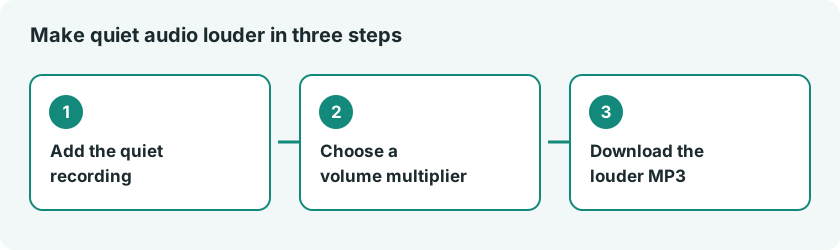
How to make quiet audio louder in your browser
- Open the Volume Booster and add an MP3, WAV, OGG or AAC file.
- Set the volume multiplier. The default is 2.0×, and 1.5× to 2× is a safe starting point for most quiet recordings.
- Click Boost volume, then listen to the result, especially the loudest parts.
- Download the louder version, which is saved as an MP3.
If it is still too quiet, run the original again with a slightly higher multiplier rather than boosting an already boosted file. The first time you use an audio tool, your browser downloads a small processing engine, which is cached for later.
What the Volume Booster does and does not do
The tool multiplies the volume of the whole track by the number you choose. It does not analyze the loudest peak, it does not balance quiet and loud passages, and it cannot repair audio that was already distorted. It also works on audio files, so it cannot raise the sound inside a video file directly.
The risk of boosting too much
Every digital audio file has a ceiling. If you push the volume past it, the loudest moments get flattened, which is called clipping. It sounds like crackling, buzzing or a harsh edge on voices. Pushing well beyond 3× on audio that is already loud makes this very likely. Boosting also raises background noise by the same amount as the speech, so a hissy recording gets hissier.
If you hear distortion, lower the multiplier until it disappears. A recording that is a little quiet but clean is better than one that is loud and rough.
Better results with a few extra steps
Trim the silence and mistakes
Cut dead air and any loud bumps at the start or end with the Audio Trimmer before you boost. You set a start time and a duration in seconds. Removing a sudden loud noise lets you raise the rest of the file more safely.
Join clips at consistent levels
If you are building one file out of several, combine them with the Audio Merger. It joins files in the order you select them.
Shrink the file for sharing
A long recording can be big. When you are done, reduce the size with the Audio Compressor, which re-encodes to MP3 at a bitrate you choose. For speech and casual listening, 96 to 128 kbps is a common sweet spot.
Choose the right format
MP3 works nearly everywhere, which makes it a good choice for sharing. If a device or app will not open your file, switch formats with the Audio Converter. Re-saving a lossy file such as MP3 can lower the quality slightly each time, so work from the original when you can.
What about the sound in a video?
If you only want to remove the sound from a video, the Mute Video tool does that. Raising the volume of a video’s audio is outside what this tool does.
Be careful where you upload private recordings
Voice memos, meetings and calls can contain sensitive details. Before you upload a recording to any online tool, check how the site handles your files. Our article on the risks of free file converters explains what to look out for.
The boost works the same way as FFmpeg’s volume filter, which scales the signal by the factor you choose.
Frequently asked questions
Can I make a recording louder without losing quality?
A small boost is usually fine. Large boosts can cause clipping and raise background noise, so start at 1.5× to 2× and listen as you go.
Why does boosted audio sound distorted?
Because the loudest parts went past the maximum level and got flattened. Lower the multiplier until the crackle disappears. Boosting cannot undo distortion that was already in the recording.
Does the Volume Booster work on video files?
No, it is built for audio files such as MP3, WAV, OGG and AAC.
If your audio is too quiet, you do not need special software or a new recording. Open the Volume Booster, start around 1.5× to 2×, and stop as soon as it sounds clear.