 BuzzKit
A short looping clip says more than a paragraph of text. GIFs are still everywhere in chats, tutorials, product pages and social posts because they play automatically with no sound and no play button. If you have a video you want to turn into one, you can do it for free in your browser in a few steps.
This guide shows how to make a GIF from a video, how to keep the file size under control, and when a GIF is the wrong choice. You can follow along with the BuzzKit Video to GIF converter.
What makes a good GIF
GIFs work best when they are short, focused and loop naturally. A reaction, a quick demonstration of a button click, or a product turning around are all good examples. Long scenes and detailed footage do not suit the format, because GIFs store a lot of data for every frame and become large very quickly.
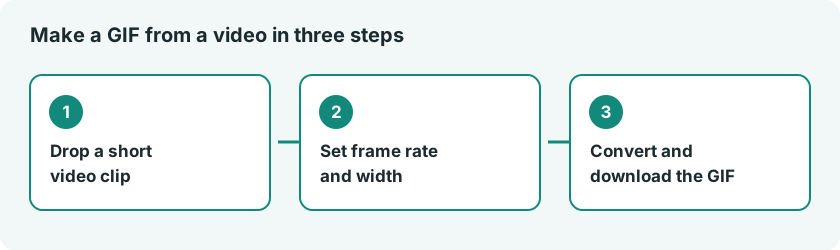
How to make a GIF from a video in your browser
- Pick the moment you want. Aim for about two to six seconds.
- If the clip is part of a longer video, cut it first with the Video Trimmer.
- Open the Video to GIF converter and add the clip.
- Convert it, then preview the loop before you download it.
Trimming first is the single best habit. A tight clip is faster to convert and creates a much smaller file than one with several seconds of extra footage. The converter defaults to 10 frames per second and 480 pixels wide, and it works best on clips under about 10 seconds.
Keep the file size small
Big GIFs fail to upload, load slowly on web pages and eat mobile data. These choices have the biggest effect:
- Length: every extra second adds many frames, so keep it short.
- Dimensions: a smaller width means far fewer pixels to store. A clip meant for a chat or blog post rarely needs to be huge.
- Frame rate: fewer frames per second makes a smaller file, with some loss of smoothness.
- Detail and color: busy scenes with gradients compress poorly compared with flat graphics.
If the result is still too large, make the source video smaller first with the Video Compressor, then convert it again.
Making a GIF from images
Sometimes you do not have a video at all, only a set of pictures such as a step-by-step sequence or a before-and-after. In that case, the GIF Maker lets you build an animation from your own images instead. Resize them to the same dimensions first with the Image Resizer so the frames line up.
GIF or video: which should you use?
GIF is easy and works almost anywhere, but it is an old format. For anything longer than a few seconds, a normal video is usually smaller and looks better, and many platforms convert uploaded GIFs into video behind the scenes for that reason. Use a GIF when you need something that loops silently without any player, such as in an email, a forum or a documentation page. Use a short MP4 when quality and file size matter more.
Tips for a smooth loop
- Choose a start and end point that look alike, so the jump back to the beginning is not obvious.
- Avoid fades and camera movement that clearly begin or end.
- Keep text large and readable, since small captions blur at low resolution.
- Preview the loop a few times before sharing it.
Protect your private footage
Screen recordings and home videos can show names, addresses or messages you did not mean to share. Review the clip before you convert it, and check how a site treats uploaded files before you use it. Our guide to the risks of free file converters lists what to look for.
If you are curious how GIF compares with other web image formats, the MDN guide to image file types covers it.
Frequently asked questions
How long can a GIF be?
There is no strict rule, but the file size grows fast. Most useful GIFs are only a few seconds long.
Why is my GIF so big?
It is most likely too long, too wide or too detailed. Trim it, reduce the dimensions and try again.
Can I make a GIF with a transparent background?
GIF supports simple transparency, but results depend on the source. Photographic footage with soft edges does not convert cleanly, so graphics with solid shapes work best.
Making a GIF is mostly about restraint: a short clip, a modest size and a clean loop. Trim your video, convert it with the Video to GIF tool, and check the result before you post it.